Common SRT File Errors and How to Fix Them
SRT files are plain text and relatively simple in structure. But small errors can cause subtitles to fail silently or display incorrectly. Some errors are invisible in a text editor but break playback entirely. This guide covers the most common ones and how to fix each.
Encoding Errors
Wrong character encoding
Symptoms: Subtitles show question marks, boxes, or garbled characters instead of non-Latin text. Common with Arabic, Chinese, Japanese, and accented European characters.
Cause: The file was saved as Windows-1252 or Latin-1 instead of UTF-8. This is the most common encoding error and it only shows up once the file is played back, not when you open it in the editor that saved it.
Fix: Re-save the file as UTF-8. In most text editors, this is in File > Save As > Encoding. In Notepad (Windows), choose "UTF-8" (not "UTF-8 with BOM") from the encoding dropdown. In VS Code, click the encoding label in the bottom status bar.
The SRT editor at /srt-editor validates encoding on import and alerts you if there is a problem.
Timecode Errors
SRT timecodes must follow this exact format:
HH:MM:SS,mmm --> HH:MM:SS,mmm
The millisecond separator is a comma, not a period. All fields need leading zeros. Hours, minutes, and seconds are two digits each. Milliseconds are three digits.
A valid cue looks like this:
1
00:00:04,200 --> 00:00:07,800
This is the subtitle text.
Malformed timecode format
Common mistakes:
Using a period instead of a comma as the millisecond separator:
00:00:04.200 --> 00:00:07.800
Missing leading zeros:
0:0:4,200 --> 0:0:7,800
Wrong number of millisecond digits:
00:00:04,20 --> 00:00:07,80
Any of these can cause a player to skip the cue entirely or misread the timing.
Fix: Correct the timecodes to the standard format. If you have many cues with the same formatting issue, a find-and-replace in a text editor can help. The SRT editor parses timecodes strictly and flags malformed entries on import.
End time before start time
Symptom: A subtitle appears for zero time or not at all.
Cause: The end timecode is earlier than the start timecode for that cue.
3
00:01:15,000 --> 00:01:12,500
This subtitle will never display.
Fix: Swap the timecodes, or correct whichever one has the typo.
Overlapping cues
Symptom: Two subtitles appear at the same time, or one cuts off another unexpectedly.
Cause: The end time of one cue extends past the start time of the next.
4
00:00:20,000 --> 00:00:25,500
First subtitle.

5
00:00:24,000 --> 00:00:27,000
Second subtitle starts before the first ends.
Most players handle overlaps gracefully, but some show both cues at once. Professional subtitle standards prohibit them entirely.
Fix: Adjust the end time of the first cue so it ends at or before the start time of the next. The SRT editor detects overlaps and can fix them automatically.
Structure Errors
Missing blank line between cues
SRT format requires a blank line between each subtitle entry. Without it, the parser may merge two cues or fail to read the file from that point onward.
Correct structure:
1
00:00:01,000 --> 00:00:03,500
First subtitle.

2
00:00:04,000 --> 00:00:06,000
Second subtitle.
Incorrect (no blank line between cues):
1
00:00:01,000 --> 00:00:03,500
First subtitle.
2
00:00:04,000 --> 00:00:06,000
Second subtitle.
Fix: Add a blank line between every cue. If the file is large, a text editor with regex support can help. Search for (\n)(\d+\n\d\d:) and replace with a blank line before the index.
Wrong or missing sequence numbers
Each SRT cue starts with an integer index (1, 2, 3...). The index should be present. Most players technically ignore the order of sequence numbers, but many subtitle tools, including importers and converters, rely on them being correct.
Missing index:
00:00:01,000 --> 00:00:03,500
This cue has no index.
Fix: Re-index the file so every cue has a sequential integer. The SRT editor re-indexes cues automatically.
BOM characters and extra whitespace
A BOM (byte order mark) is an invisible character that some editors add to the start of a UTF-8 file. It causes the first cue's index to fail parsing, so the first subtitle is often missing even though everything else works.
Trailing spaces and non-breaking spaces can also cause issues in strict parsers.
Fix: Save the file as "UTF-8 without BOM." If you cannot control the export, open the file in a hex editor or use a tool that strips the BOM. The SRT editor strips BOM characters on import and cleans trailing whitespace.
Content and Readability Errors
These are not structural errors, but they are flagged as quality issues by professional subtitle editors and broadcasters.
Reading speed too high
What it is: Too many characters are on screen in too little time. Viewers cannot read the subtitle before it disappears.
Standard: Most professional guidelines allow a maximum of 17 characters per second for general audiences. Netflix allows up to 20 CPS. Anything above that is considered too fast.
Fix: Either shorten the subtitle text or extend the display duration. See the subtitle reading speed standards page for full guidance. The SRT editor calculates CPS for every cue and flags ones that exceed the threshold.
Lines too long
A single subtitle line over roughly 42 characters becomes hard to read on small screens. It may also overflow the frame on mobile devices.
Fix: Split the subtitle into two shorter lines, or split the cue into two consecutive cues.
Subtitle gaps too short
A gap of less than two frames between consecutive cues creates a flickering effect on playback. The subtitle appears to flash rather than cut cleanly.
Standard: The recommended minimum gap is 2 frames (approximately 80ms at 25fps).
Fix: Trim the end time of the first cue or push back the start time of the second cue to create a visible gap.
How to Fix SRT Errors
For most structural and timing errors, the free SRT editor at /srt-editor handles the common fixes automatically. It:
- Re-indexes cues on import
- Detects and fixes overlapping timecodes
- Strips BOM characters and trailing whitespace
- Validates encoding and alerts on non-UTF-8 files
- Flags reading speed violations and long lines
- Runs entirely in the browser, with no upload or account required
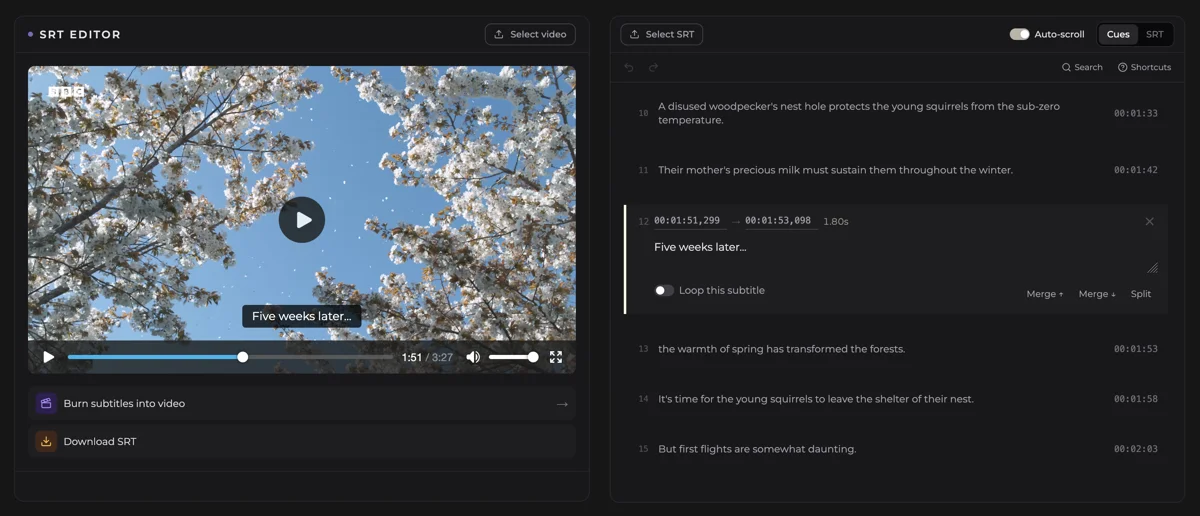
For errors that require manual correction, such as wrong text content, poorly placed line breaks, or cues that need to be split or merged, the block view in the editor makes it straightforward to work through cues one by one.
For encoding issues specifically, the most reliable fix is to re-save the file from a plain text editor as UTF-8 without BOM before importing it elsewhere.
FAQ
The file is almost certainly not saved as UTF-8. It was likely saved as Windows-1252 or Latin-1, which cannot represent non-Latin characters correctly. Re-save the file as UTF-8 without BOM from a text editor. The SRT editor will alert you to the encoding problem on import.
VLC is very forgiving with SRT errors. YouTube and most online platforms use stricter parsers. Common causes of this specific mismatch are malformed timecodes (period instead of comma as the millisecond separator), missing blank lines between cues, or a BOM character at the start of the file.
Open the file in the free SRT editor. It checks encoding, validates timecode format, detects overlaps and re-indexing issues, and flags reading speed violations on import. No account or upload is needed.
Yes. SRT files are plain text, so a text editor is enough for most fixes. For encoding issues, re-save as UTF-8 without BOM. For structural issues like missing blank lines or wrong timecode format, find-and-replace works well. For overlaps and re-indexing, the free SRT editor automates these fixes in the browser.
The format is HH:MM:SS,mmm --> HH:MM:SS,mmm. The millisecond separator is a comma, not a period. All values need leading zeros. For example:
00:01:23,456 --> 00:01:26,100
The most common causes are: wrong file encoding (re-save as UTF-8), a BOM character at the start of the file (strip it, or re-save as UTF-8 without BOM), malformed timecodes (check for periods instead of commas as the millisecond separator), or missing cue indexes. Open the file in the SRT editor to identify which issue is present.