How to Sync Subtitles to Video
If every subtitle in your video appears a few seconds too early or too late, you have a fixed timing offset. This is one of the most common subtitle problems, and it is straightforward to fix. This guide covers that specific case. If your subtitles start in sync and gradually drift apart from the audio, that is a different issue and a single offset will not fully resolve it.
What causes a fixed timing offset
A fixed offset means all your subtitle timecodes are shifted by the same amount. A few things commonly cause this:
- AI-generated subtitles from the wrong version of the video. If the SRT was generated from a trimmed clip but you are applying it to the full video (or vice versa), the timecodes will be off from the start.
- The video was edited after the SRT was created. Adding or removing an intro, bumper, or any segment at the beginning shifts every subsequent subtitle by exactly that duration.
- The SRT was made for a different cut. Different export settings, frame rates, or source files can produce slightly different audio start points.
- Re-encoding shifted the audio slightly. Some encoding pipelines introduce a small consistent delay between the video container and the audio track.
In all of these cases, the fix is the same: shift every subtitle timecode by a fixed number of seconds.
How to fix subtitle sync using the timing offset tool
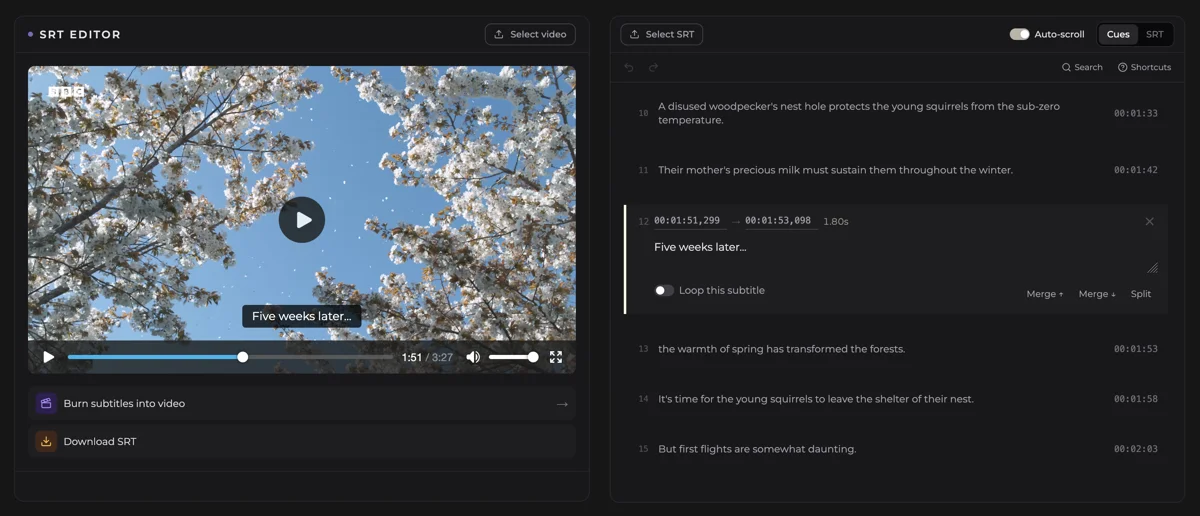
The SRT Editor has a built-in timing offset feature called Shift timing. It runs entirely in your browser. No account, no upload.
Step 1. Open the SRT Editor.
Step 2. Click Load video and select your video file. The video loads locally in your browser.
Step 3. Click Load SRT and select your SRT file.
Step 4. Play the video and find a subtitle you can hear clearly. Note whether it appears early or late, and by roughly how many seconds. You do not need a precise number yet.
Step 5. Click the timer icon in the toolbar to open the Shift timing panel.
Step 6. Enter the offset in seconds.
- If your subtitles appear too early, use a positive number. For example: subtitles appear 2 seconds before the audio, type
2. - If your subtitles appear too late, use a negative number. For example: subtitles appear 3 seconds after the audio, type
-3.
Step 7. All subtitle timecodes shift instantly. Play back a few cues across the video to confirm the timing looks right. Adjust and reapply if needed.
Step 8. Click Download SRT to save the corrected file.
Checking your work
After applying the offset, spot-check in at least three places: the beginning, the middle, and near the end of the video. If the timing looks correct throughout, you are done.
If the first subtitle is now in sync but later subtitles are still off, the problem is not a fixed offset. The video may have been encoded at a variable frame rate, or the audio and video tracks have multiple discontinuities. That requires editing individual cue timecodes rather than a single global shift.
After fixing: burn the subtitles into your video
Once your SRT is correctly synced, you may want to make the subtitles a permanent part of the video file. The Burn Subtitles Into Video tool handles this. Upload your video and corrected SRT, choose a style, and get a new video file with the subtitles rendered directly into the picture. It costs €0.10 per minute of video.
FAQ
The most common cause is that the SRT file was created for a different version of the video. This happens when the video is trimmed or edited after the subtitles are generated, when an intro is added or removed, or when the SRT was made from a different export of the same footage.
Play the video and find a subtitle you can hear clearly. Estimate how early or late it appears. Enter that number in the Shift timing panel and check the result. The SRT Editor lets you adjust and reapply as many times as you need, so you can get the number right by feel.
No. A timing offset applies the same shift to every subtitle. If your subtitles start in sync but fall out of sync over time, the offset between audio and text is changing, not fixed. That problem requires adjusting individual timecodes or re-generating the subtitles for the correct version of the video.
Yes. If the problem is a fixed offset, you can correct it by shifting all timecodes by the same amount. The SRT Editor's Shift timing feature does exactly this. Re-generating subtitles is only necessary if the original transcript or timing is wrong throughout.
A timing offset shifts the existing timecodes without changing the subtitle text or structure. Re-generating subtitles runs the audio through a transcription model again, producing new text and new timecodes. If your text is correct but the timing is off, an offset is the faster and cheaper fix. If you need new subtitles entirely, the AI Subtitle Generator handles that.