
How to Edit an SRT File
Editing an SRT file means changing the subtitle text, adjusting timecodes, or restructuring subtitle blocks. There are two common situations: you generated subtitles and want to review them before exporting, or you have an existing SRT file that needs corrections.
Editing Subtitles Generated with Subtitling.net
If you generated subtitles with Subtitling.net, the integrated editor is part of the same workflow. You do not need to download and re-upload the SRT file to edit it.
The workflow:
- After generation completes, go to My Videos
- Click Edit Subtitles on your video
- The editor opens with your video and generated subtitles already loaded
- Edit text and timing, split or merge blocks, or import your own SRT file if needed
- Click Save progress at any point to keep your changes
- Click Burn into video to render a new version with burned-in subtitles
You can revise the subtitles and render a new version without starting over.
This editor is part of the generation-to-export workflow. It is designed for reviewing and refining subtitles that came out of the AI step.
Editing an Existing SRT File
If you already have an SRT file from another source and want to correct timing or text, you have two options.
In a plain text editor: An SRT file is plain text. You can open it in any text editor and edit timecodes and subtitle content directly. Keep the formatting rules below in mind.
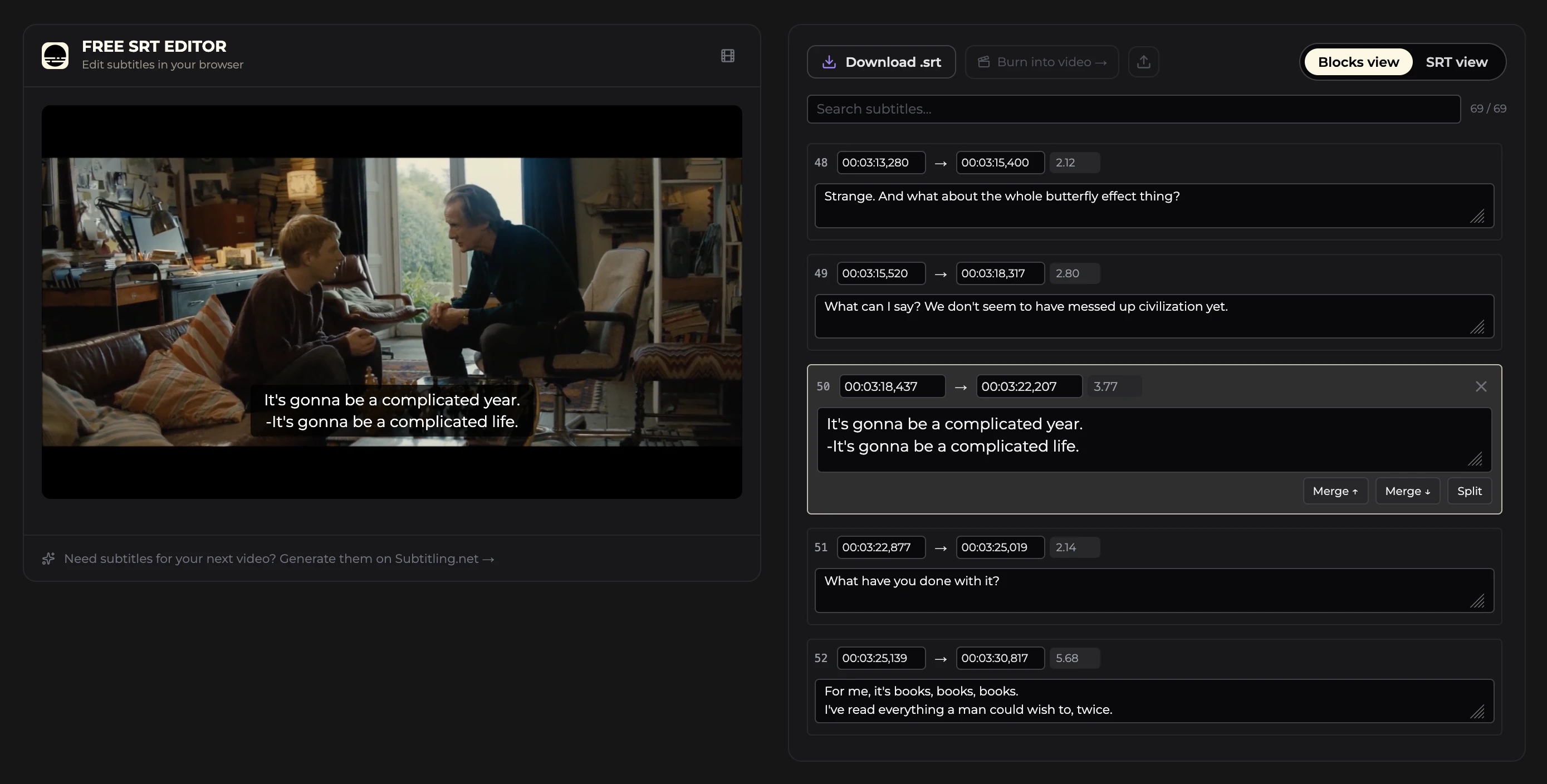
In a browser-based SRT editor: SRT Editor is a free standalone editor that lets you load a video and an SRT file and edit them together in the browser. No upload, no account required, everything runs locally in your browser.
SRT Formatting Rules to Keep in Mind
Whichever method you use, a few formatting rules matter for playback compatibility:
- No overlapping timecodes: the end time of one block must not exceed the start time of the next
- Blank line between blocks: each subtitle entry must be followed by a blank line
- Sequence numbers: do not need to be in order; any numbering works
Example of correct formatting:
1
00:00:02,320 --> 00:00:06,640
Look at the size of that trunk.
You could put three bodies in there.

3
00:00:07,460 --> 00:00:10,599
Just kidding.

4
00:00:11,700 --> 00:00:15,959
Okay, thank you. We appreciate it.
If you do not have an SRT file yet and need to generate one from your video, start with the AI subtitle generator. You will get an SRT file and a video with burned-in subtitles in one step.
For more on the SRT format itself, see what is an SRT file.